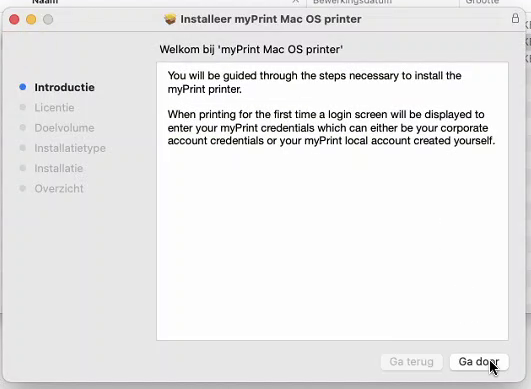
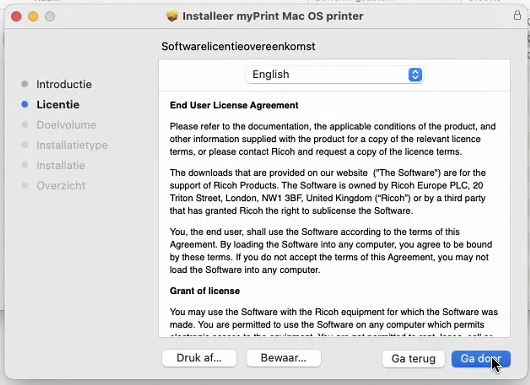
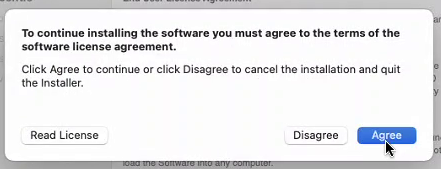
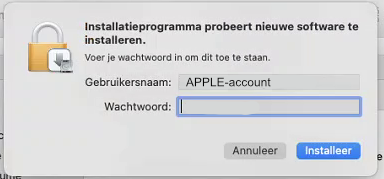
Start the installation of the myPrint printer:

In a browser of your choice, go to the MyPRINT site via,

printer.brightlands.com

The myPrint login page now appears

Can’t see this page? Then you are likely not connected to the SMART WiFi network or a wired connection on campus. It may also be that your company has not subscribed to the print service.”

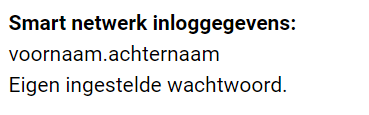
Enter the username and password details that are also used to log in to the “SMART” WiFi network!

If you no longer have this, you can request a new password via the smart portal.

[ https://smartportal.brightlands.com ]

Click on login.

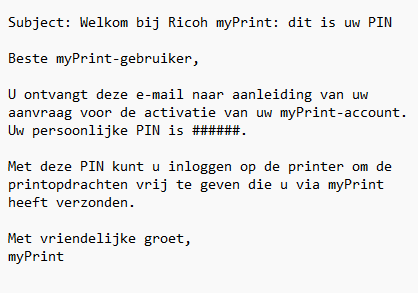
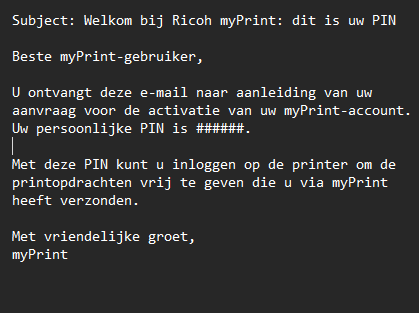
When you log in, the myPrint portal automatically sends an email to your own email address which is registered in our system.

This contains the PIN code to easily and quickly log in to the printers themselves later instead of logging in with your username and password.

At the bottom of the screen it now says:

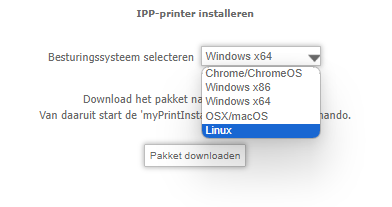
Click here.

The correct package for your system will be selected automatically.

Click on download package.

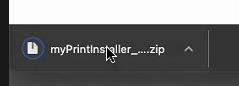
An installation file is now being downloaded.

Click on the downloaded file to open it.

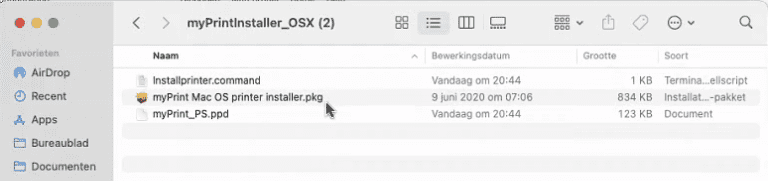
Click on the .zip file in the finder and then on the .pkg file.

Click on: Continue

Click on: Continue

Accept the terms and conditions

Enter the username and password of the

Local Apple account

on the computer to start the installation.

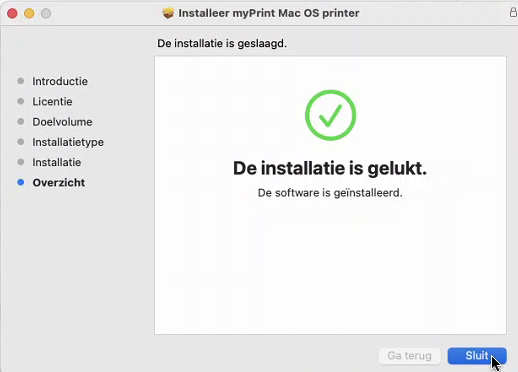
Installation was successful!

Press Close

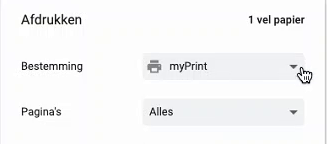
The first time you print, you will have to select the printer you just installed.

Select a file to print and choose the myPrint printer and press print.

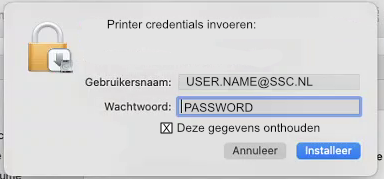
The first time you print you will be asked for your printer login details.

Enter the login details here that are also used to log in to the “SMART” WiFi network!

CLICK ON REMEMBER THIS!

Click on login/install/continue.

Printing is now possible by selecting this printer while printing.

To test this, send a printout to the printer and pick it up at the nearest printer.

Log in to the printer with PINCODE

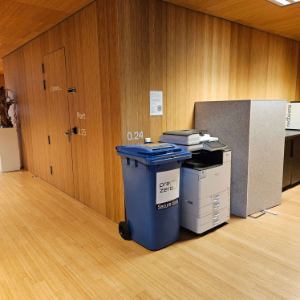
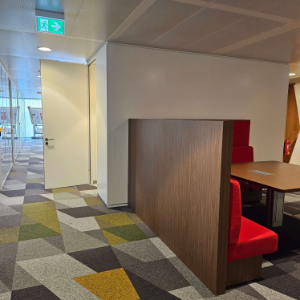
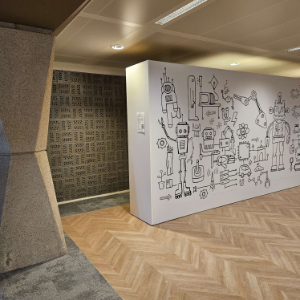
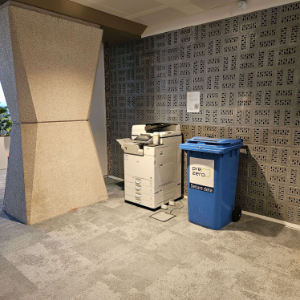
The printers can be found at the following locations:

Floor 0

Near Betawerk

Floor 1

In printer room near Etil

Floor 4

When entering, turn right into the printer room

Floor 5

In the hallway near LARK info lab
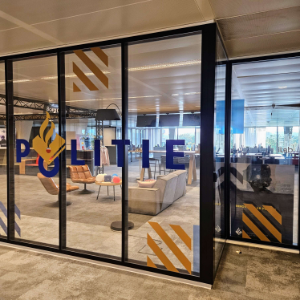
i-LAB
(for police only)
In the printer room within the i-LAB

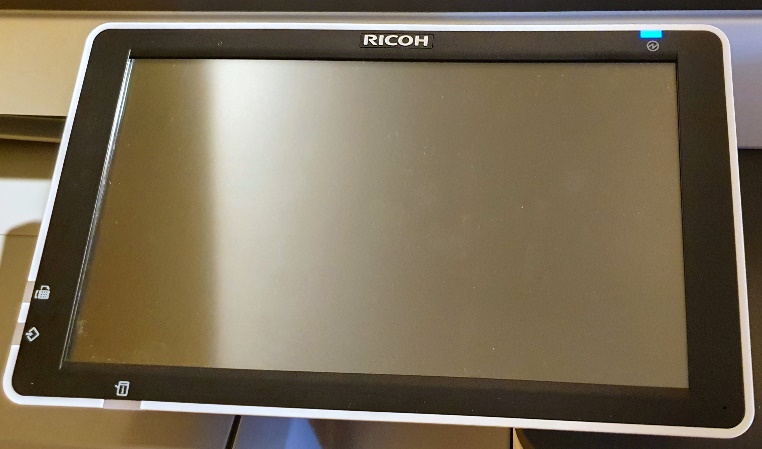
Press the screen to wake the printer from sleep mode.

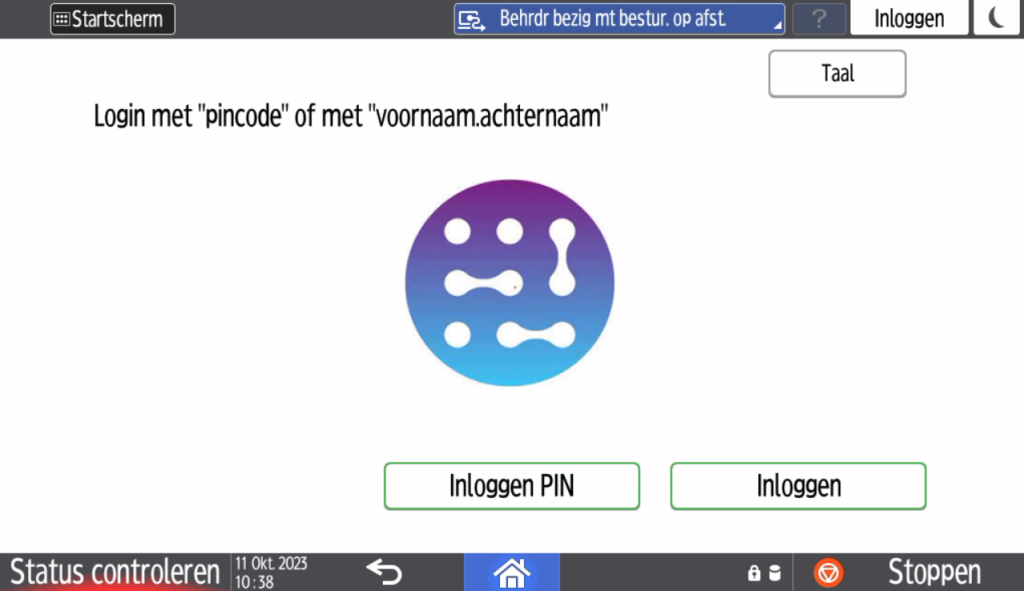
Choose Login PIN

Enter the PIN code that was sent to your email address during printer installation.

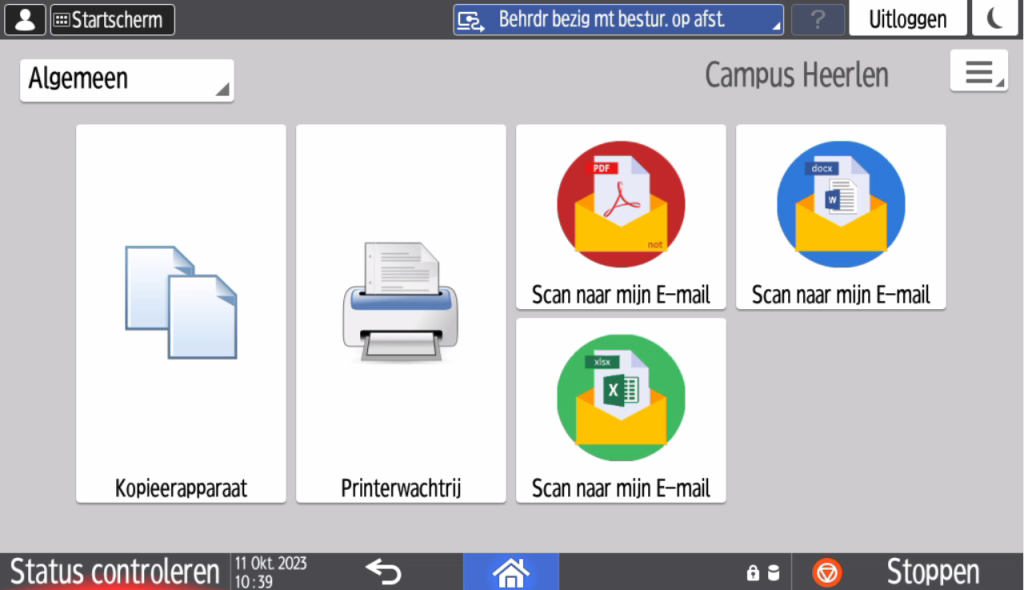
In the menu select:

Printer queue to print the sent prints.

Copy to copy.

Scanning to your own email address is also possible in the following formats:

*.pdf | *.docx | *.xlsx